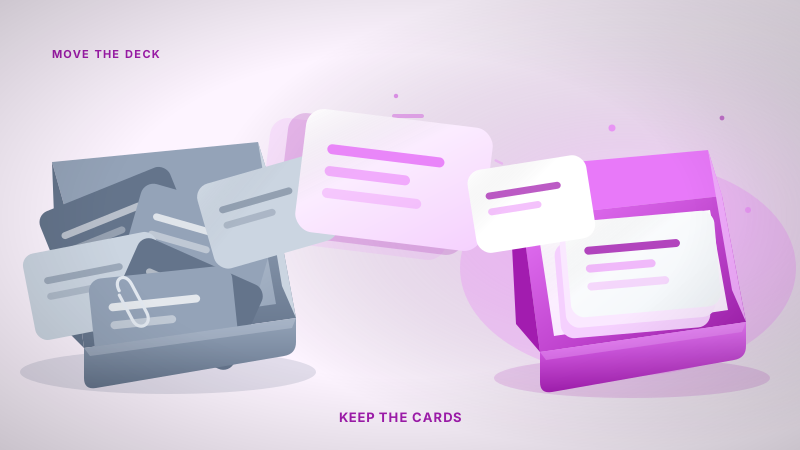
How to leave Anki without retyping your decks
A guide on moving your flashcards out of Anki, what actually transfers in an .apkg file, and why your review history stays behind.
Hello there! If you are reading this, you probably have a massive collection of cards in Anki but have realized the interface or the setup time is no longer working for you. Moving to a new app feels like a massive chore because nobody wants to copy and paste a thousand anatomical terms or coding snippets by hand.
I am Daniel, a third year engineering science student at UofT. I work on Nebulearn, so I definitely have a conflict of interest here. However, I used Anki for years before building my own tool, and I know exactly how frustrating it is to feel locked into an app just because your data lives there.
You can move your cards. It usually takes about three minutes. But there is a catch regarding your progress that most people do not realize until after they hit import.
The anatomy of an .apkg file
To move your cards, you need to export them as an Anki Package file (.apkg). This is essentially a compressed folder that contains your text, your images, and your formatting.
When you "import an Anki deck" into another app, that app is reading the .apkg file and trying to map Anki fields to its own system. Most modern flashcard apps can handle the text and images just fine. If you have heavy custom CSS or complex JavaScript add-ons in your cards, those often break during the transition.
Before you export, you should decide if you are moving everything or just a specific subject. You can export your entire collection or just a single deck. If you are moving to a simpler app, I usually recommend cleaning up your tags and deck hierarchy first so you do not bring a messy "miscellaneous" pile into your new workspace.
What transfers vs what stays behind
This is the part that catches people off guard. When you switch from Anki, you are moving the content, not the memory.
| Feature | Does it transfer? | Note |
|---|---|---|
| Front/Back Text | Yes | Standard across almost all apps. |
| Images | Yes | Usually bundled inside the .apkg. |
| Tags | Mostly | Depends on the destination app's support. |
| Review History | No | This is the "brain" of your deck. |
| Intervals/Due Dates | No | Cards will reset to "New" status. |
The review history is a log of every time you pressed Again, Hard, Good, or Easy. That data is specific to the Anki database. While some niche tools try to scrape this data, almost every mainstream app (including Nebulearn) will treat your imported cards as brand new.
You will have to see those cards again to "teach" the new app how well you know them. This is why I usually suggest finishing your big exams on Anki first and only switching when you are starting a new semester or a new block of material. If you're still deciding which tool fits your next semester, I wrote a guide on how to use flashcards effectively that covers the strategy side.
Where to go after Anki
If you are leaving Anki, you are likely looking for one of three things: better card creation, a better mobile experience, or a cleaner UI.
If you have a massive pre-made deck like AnKing for medical school, you should probably stay on Anki. The ecosystem of add-ons for those specific decks is hard to beat. If you want the fastest possible study sessions on a phone, AnkiMobile is about $25 one-time on iOS, which is a steep entry fee but worth it if you are committed to the long haul.
For those who want to spend less time building cards and more time actually seeing them, there are a few paths:
- Quizlet: Great for quickly finding decks other people made. However, the free version uses session-based learning rather than a true spaced repetition calendar. They retired their Long-Term Learning feature a while ago.
- RemNote: Excellent if you want your flashcards to live inside your notes. It is a "bottom-up" approach where the note becomes the card.
- Nebulearn: This is what I work on. We focused on the bottleneck of turning a 40-slide PDF into a deck. We use FSRS by default, which is the same modern algorithm Anki users often switch to manually.
How to actually run the import
The actual steps for an .apkg import are usually tucked away in a settings menu. In Anki, you go to File > Export, select Anki Deck Package, and make sure "Include media" is checked.
If you are moving to Nebulearn, we have a dedicated tool for this. I wrote a step-by-step guide on our help site that shows you exactly where to click so you do not lose your images during the move.
You can find the canonical recipe here: How to import an Anki deck to Nebulearn.
Dealing with the "New Card" surge
Since your cards will reset to "New" status, your first few days in a new app will feel overwhelming. You are essentially telling the system that you have never seen any of these 1,000 cards before.
Do not try to do them all in one day. Most apps allow you to set a "New cards per day" limit. I recommend setting this to 20 or 30. This slowly drips your old Anki cards back into your rotation without destroying your schedule.
If you want to read more about how different apps handle this scheduling, check out my breakdown on study apps that save the most time or the direct comparison of Nebulearn vs Anki.